
Search for documents
PaperSave provides you an option within the PaperSave Options Window that allows you to search for documents associated with a Financial Edge record.
Follow the below steps to perform a search for the documents within any PaperSave supported record type.
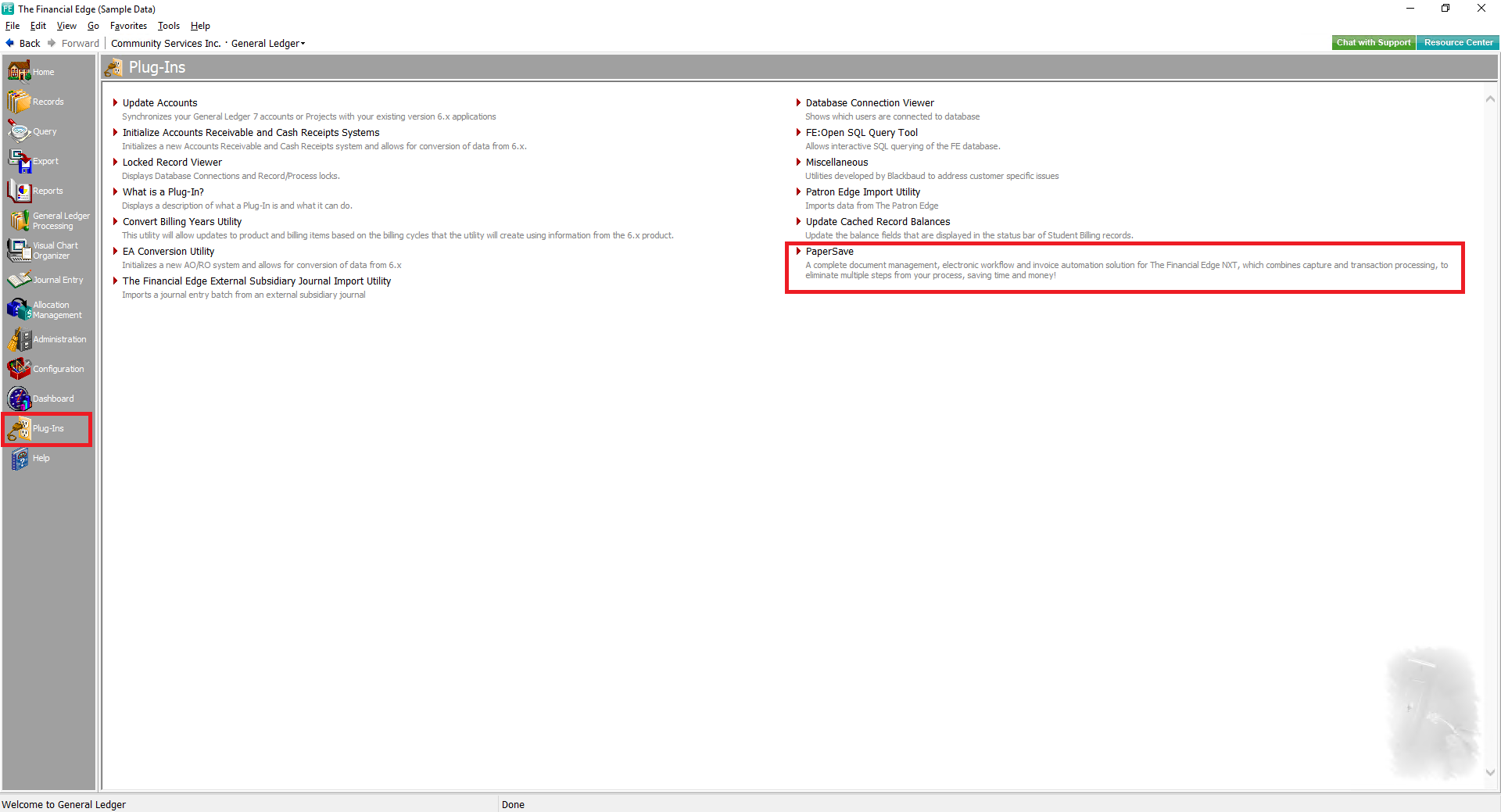
1) First, go to Plug-Ins in the Financial Edge bar and select PaperSave to open PaperSave Options window as shown below.
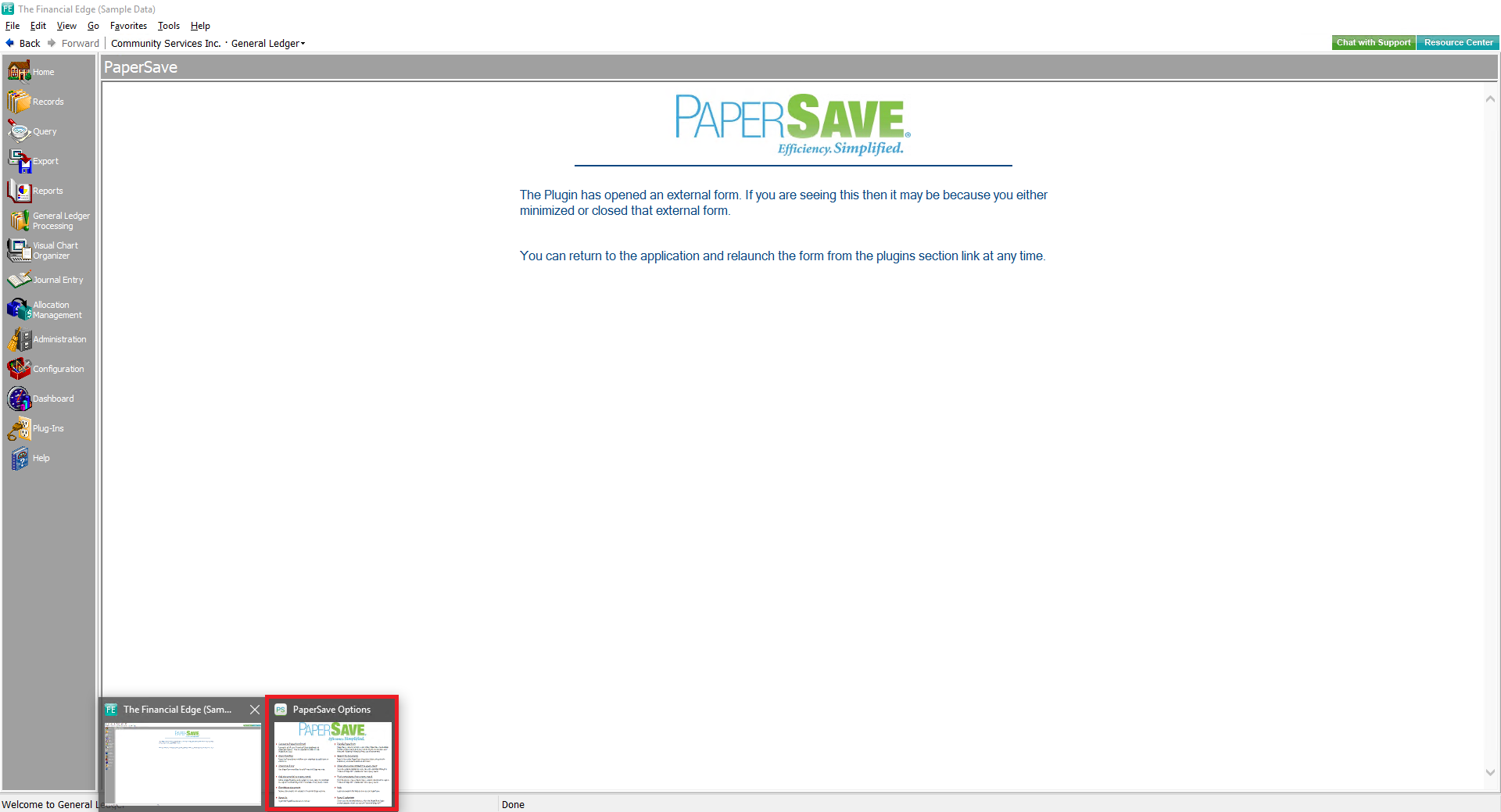
2) Once you click on PaperSave, it opens the PaperSave Options window, which gets automatically minimized. You can hover on the Financial Edge application icon on the taskbar and select PaperSave Options to maximize the window, as shown in the below screen.
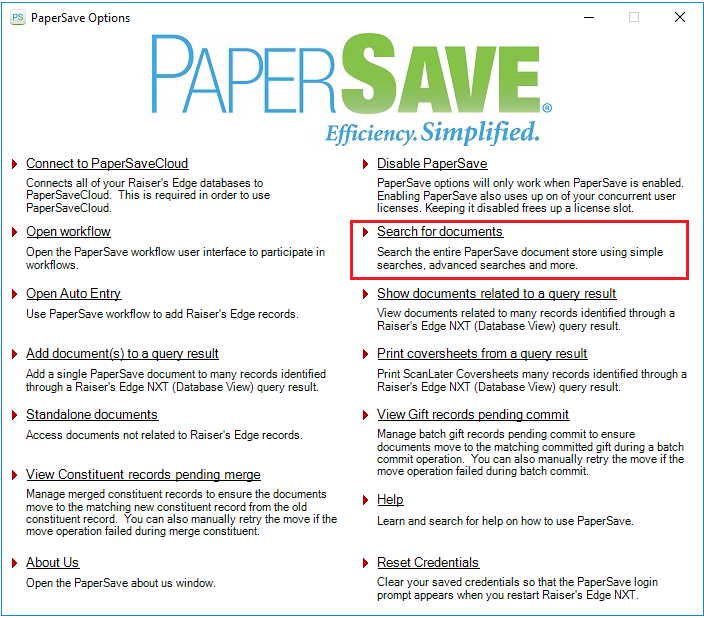
3) Now, click on the Search for documents option from the PaperSave Options Window as shown in the below screen:
4) You will be redirected to the PaperSave Search Area in your default browser.
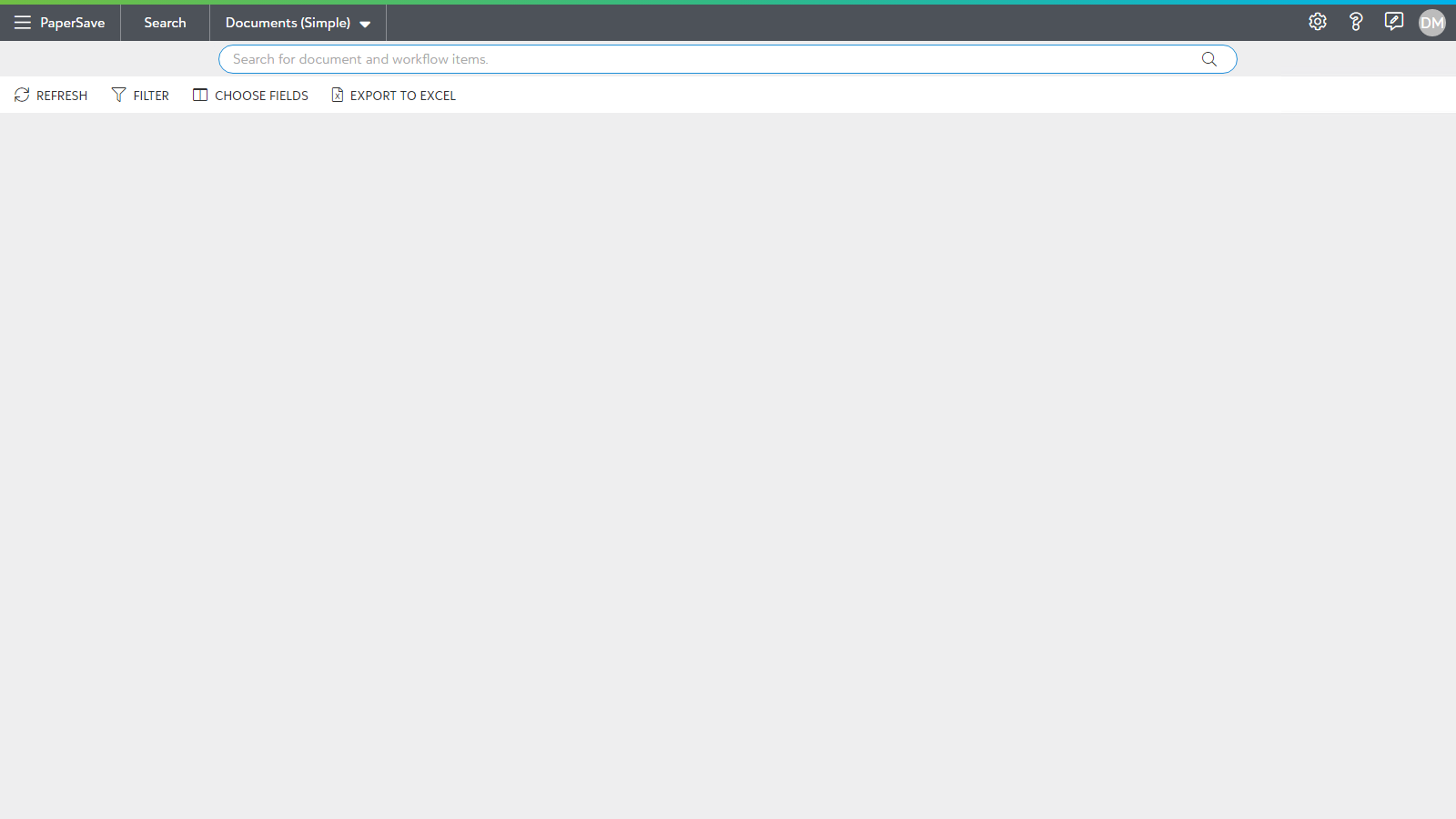
5) From the PaperSave Search Area, you can find the desired document by using the available search methods such as Simple search, Advanced Search or Integrated App (Blackbaud The Financial Edge) record search. Click here to know more about the different Search options.